
Client Alert
A stolen phone is no longer just a device-loss problem. It can be a payments, identity, and confidentiality event.
The Pickpocket Has Moved From Leather to Lithium
Not long ago, a stolen wallet usually meant a few canceled cards and an inconvenient afternoon. A stolen phone can be far more consequential. Today’s smartphone is often a work line, a private line, a wallet, a password-reset tool, a multifactor authentication device, and, in some cases, a cryptocurrency vault. In other words, the modern phone is not just a phone. It is a portable control panel for the rest of a person’s life.
That shift helps explain why opportunistic theft has changed character. The thief is not merely taking hardware. The thief may be taking a route into email, payment apps, saved cards, cloud storage, authentication tools, and work systems. For lawyers, that risk can quickly become more than personal inconvenience. It can implicate client communications, privileged material, and everyday professional obligations to safeguard sensitive information.
Old-Fashioned Precautions Still Matter
Some advice remains gloriously low-tech because it still works. Look up before taking a phone out in public. Avoid using it while completely absorbed in headphones, messages, or navigation if the setting already feels crowded or chaotic. Do not leave it unattended on a café table, a conference room chair, or the edge of a bar where it might as well be wearing a name tag that says “please take me.”
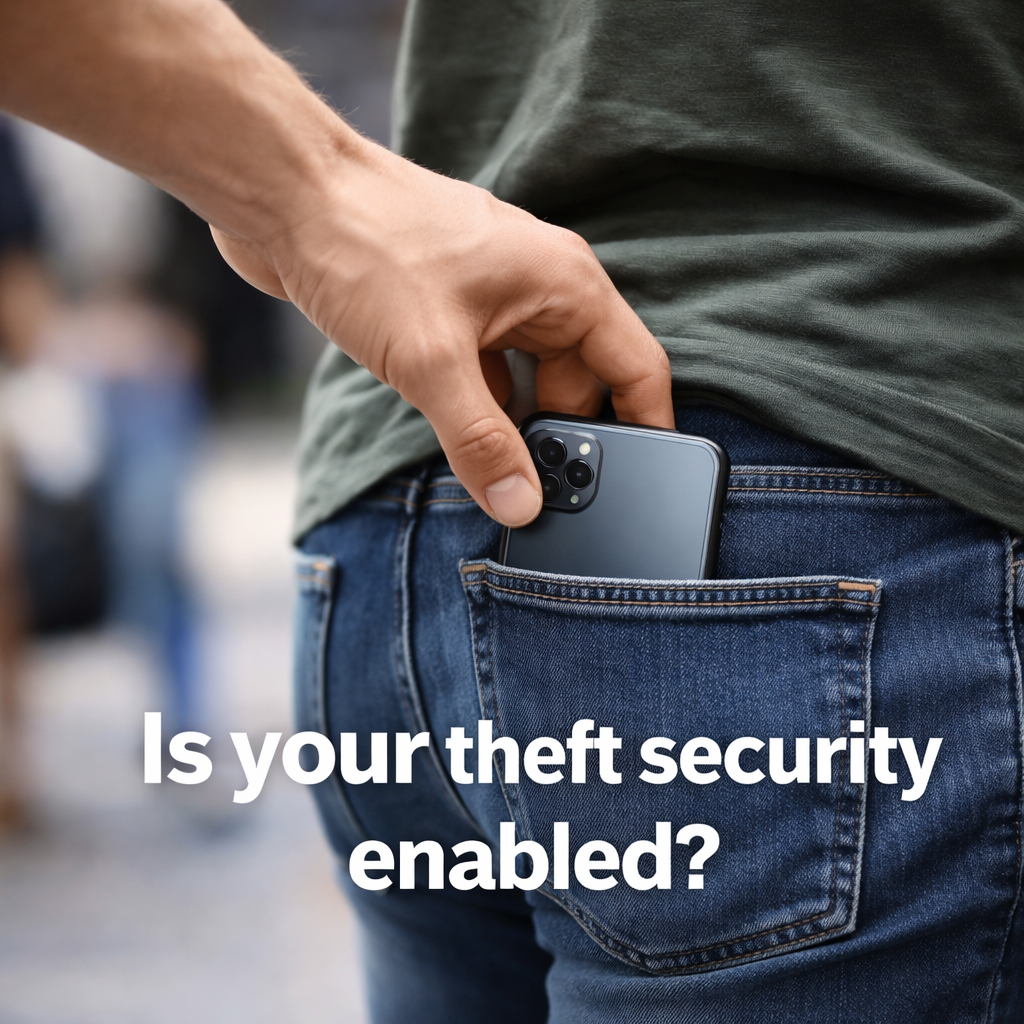
The visible back pocket is also not a security strategy. It is merchandising. A front pocket, an interior coat pocket, or a zipped compartment is better. The goal is to stop making a valuable device look easy to grab.
Do Not Hand a Thief the Off Switch
One of the smartest iPhone settings is also one of the easiest to miss: disable Control Center access from the Lock Screen. Apple allows users to choose which features remain available while the phone is locked, including Control Center. That matters because Control Center is where someone can quickly reach connectivity-related controls without unlocking the device first and making the phone untraceable by set it in air plain mode. Go to Settings > Face ID & Passcode, then under Allow Access When Locked, turn Control Center off. Less drastic remove the connectivity control from the Control Center.
Android is less tidy. There is no universal Android-wide switch that works exactly like Apple’s Lock Screen Control Center setting across all manufacturers and models. So the better advice is not to promise a magic “hide all shortcuts” answer. The better advice is to make the phone more resilient if a thief cuts connectivity after taking it.
That is where Google’s anti-theft tools matter. On supported Android devices, Offline Device Lock can automatically lock the screen after the phone goes offline, Theft Detection Lock can lock the phone if it appears to have been snatched, and Failed Authentication Lock can lock the device after repeated failed attempts. Paired with Find Hub and offline finding, those settings do not eliminate every lock-screen shortcut on every Android phone, but they do make a stolen device much harder to keep useful.
The practical takeaway is simple: on iPhone, remove Lock Screen access to Control Center. On Android, assume shortcut behavior may vary by device and focus on enabling Google’s theft protections and offline-finding tools. The goal in both cases is the same. If someone steals the phone, the Lock Screen should not double as customer service for the thief.
Why a Second Device Matters
One of the most practical and overlooked precautions is a second trusted device, such as a tablet. When a phone disappears, the tablet becomes the control room. It can help the owner locate the device, trigger Lost Mode or Find Hub actions, review account settings, and cut off wallet access before the thief gains much traction.
That matters because the first minutes after a theft are rarely calm. A second device allows the user to respond without borrowing someone else’s phone, hunting for passwords from memory, or trying to reconstruct account access while under pressure. In practical terms, it is the difference between a controlled response and a digital fire drill.
Practical Setup Checklist
These steps are best done before anything goes wrong. They are substantially less useful as a postscript.
iPhone
- Turn on Find My now.
Go to Settings > [your name] > Find My > Find My iPhone, then turn on Find My iPhone, Find My network, and Send Last Location. - Enable Stolen Device Protection.
Go to Settings > Face ID & Passcode (or Touch ID & Passcode), then turn on Stolen Device Protection. For users who want the stricter setting, choose Always under Require Security Delay. - Replace the default-style passcode with something stronger.
Go to Settings > Face ID & Passcode > Change Passcode > Passcode Options, then choose Custom Alphanumeric Code or a stronger custom numeric code. - Disable Control Center from the Lock Screen.
Go to Settings > Face ID & Passcode, scroll to Allow Access When Locked, and turn off Control Center. - If the phone goes missing, use the second device immediately.
Open the Find My app on an iPad or other Apple device and place the iPhone in Lost Mode. To suspend Apple Pay items from another Apple device, go to Settings > [your name] > [lost iPhone] > Remove Items under Wallet & Apple Pay.
Android
- Turn on Location.
Go to Settings > Location and make sure Use location is on. - Confirm Find Hub is enabled.
Go to Settings > Security > Find Hub and make sure Allow device to be located is on. - Enable offline finding.
Go to Settings > Security > Find Hub > Find your offline devices and choose the broadest offline-finding option available on the device. - Turn on theft protection features.
Go to Settings > Google > All services > Theft protection. Turn on Theft Detection Lock, Offline Device Lock, and Failed Authentication Lock where available. - Turn on extra protections if the device supports them.
In the same Theft protection menu, turn on Remote Lock. If the phone offers it, turn on Identity Check as well. - If the phone goes missing, use the second device at once.
Open the Find Hub app on another Android phone or tablet, or use the web version of Find Hub, to locate, secure, or erase the device. To remove a payment card from the stolen phone, use the Google Wallet website, select the card under Payment methods, and choose Remove from device.
Note: Android lock-screen shortcut behavior varies by device maker and model, so the most reliable protection is to enable theft-detection, offline-locking, and Find Hub features rather than assuming there is a universal Quick Settings switch to disable.
Why This Matters for Lawyers
For lawyers, a stolen phone is not merely a consumer headache. It may expose client texts, email, privileged attachments, billing tools, saved credentials, and authentication apps tied to firm systems. That makes mobile-device hygiene part of ordinary risk management, not a niche technology preference.
Seen through that lens, these settings are not fussy gadget tweaks. They are sensible safeguards for the pocket-sized device that now carries a surprising amount of a lawyer’s professional life.
Closing Thought
 The point is not panic. The point is friction. Thieves prefer targets that are easy to spot, easy to grab, easy to unlock, easy to disconnect, and easy to monetize. A few habits and a few settings changes make all of that harder.
That is the practical takeaway. In 2026, a phone is no longer just a phone. It is wallet, key ring, office, recovery tool, and identity checkpoint. Think of this as basic digital self-defense.
If you have questions please fill out the form below or contact us at (415) 284-2221.