
This post is built for solo and small firms (up to ~30 users) and designed to be SEO-friendly, extremely useful, and easy to share with clients.
Screenshot safety note: Use a test matter or redact client names, invoice totals, addresses, and trust balances. Avoid showing bank account details.
Table of contents
- Quick Bill vs Bulk Billing vs Automated Billing: what should I use?
- Why can’t I see Billing, approve bills, or edit invoices?
- Why won’t Clio let me generate a bill for this matter?
- How do time entries and expenses become invoice line items?
- Why are time entries/expenses missing from the bill?
- What do bill states mean, and why does “Approved” change everything?
- Edit vs void vs delete: what’s the difference?
- How do I make invoices look professional? (Bill themes)
- Which Bill Settings should I configure once and never think about again?
- How do I send/resend bills and track delivery (email, text, portal)?
- What are Bill Message Templates and why do they matter?
- Bill reminders: manual, automated, and why reminders are secure links
- How do clients pay online (payment links, QR codes, Text to Pay)?
- How do I record payments correctly (including multi-bill and trust)?
- Payment plans: how do they work and what do they pause?
- Can I split a bill between multiple payers?
- Trust/client funds basics: what you can do and what you cannot do
- Evergreen retainers: how to set up replenishment workflows
- Trust reconciliation: why it doesn’t match and who can reconcile
- Discounts, credit notes, interest, tax, reports, exports, and LEDES
1) Quick Bill vs Bulk Billing vs Automated Billing: what should I use?
Answer: Use Quick Bill for one matter fast, Bulk Billing for billing runs, and Automated Billing if you want scheduled generation.
- Quick Bill: “I need this one invoice out the door.”
- Bulk Billing: monthly billing runs, batching, multi-matter bills.
- Automated Billing: predictable cycles where you want bills generated on a cadence.
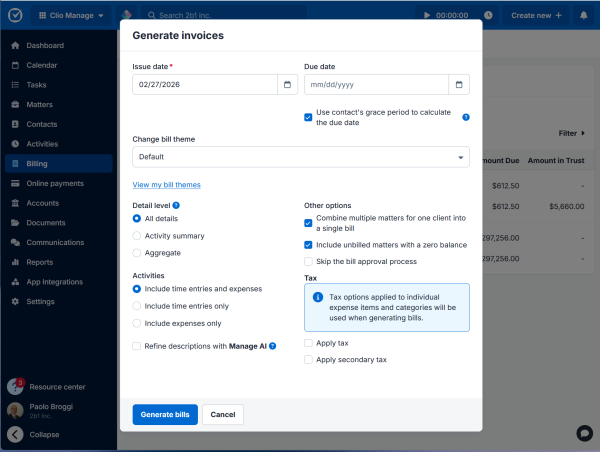
Billing >> New Bills.
2) Why can’t I see Billing, approve bills, or edit invoices?
Answer: It’s almost always permissions. Clio controls billing actions by role, so not everyone can approve, edit, send, void, or delete bills.
Quick triage: If someone “can’t see bills,” start with roles/permissions before you assume the software is haunted.
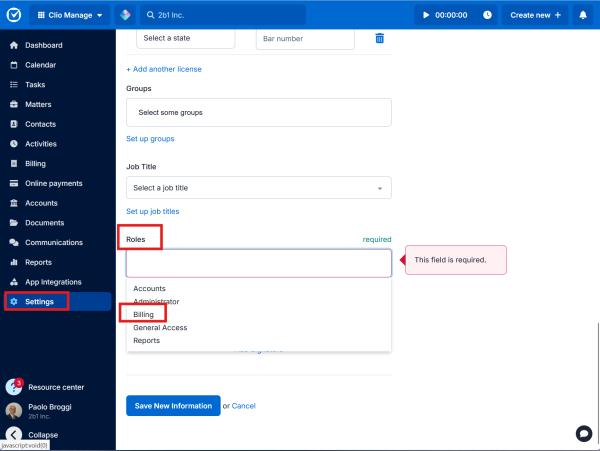
Settings >> Manage Users – Roles
3) Why won’t Clio let me generate a bill for this matter?
Answer: Usually because the matter is non-billable or there are no unbilled time/expenses.
- Confirm the matter is billable.
- Confirm there are unbilled activities.
- Confirm you have billing permissions.
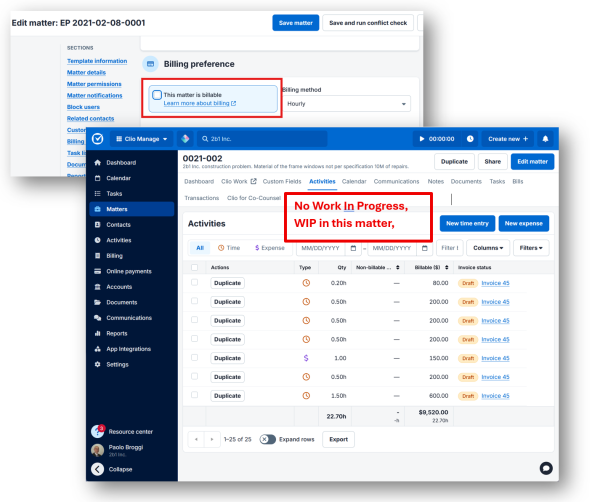
Clio Manage matter billing preference and unbilled activities
Open Matter >> Click on Edit Matter >> Billing preferences . Also go to Activities list filtered to Unbilled.
4) How do time entries and expenses become invoice line items?
Answer: Bills pull from Activities, primarily time entries and expenses.
Pro tip: If you want clean invoices, standardize task codes/activity categories now. Future-you will send present-you a thank-you note.
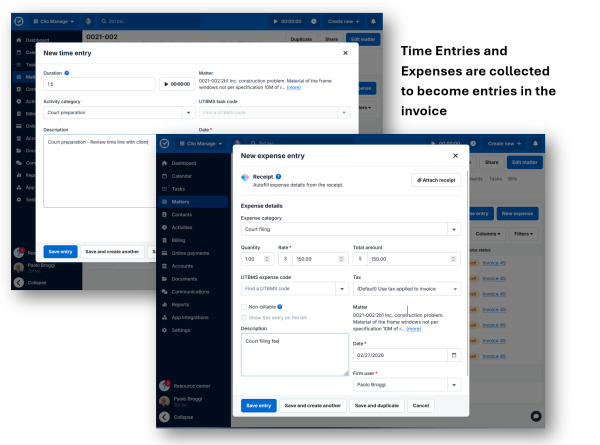
Clio Manage creating time entries and expenses for billing
5) Why are time entries/expenses missing from the bill?
Answer: The “missing entries” greatest hits:
- The entry is non-billable.
- The entry is already billed.
- Your bill filters excluded it (date range, matter, user).
- Rate hierarchy settings make the amount look “wrong,” so it feels missing.
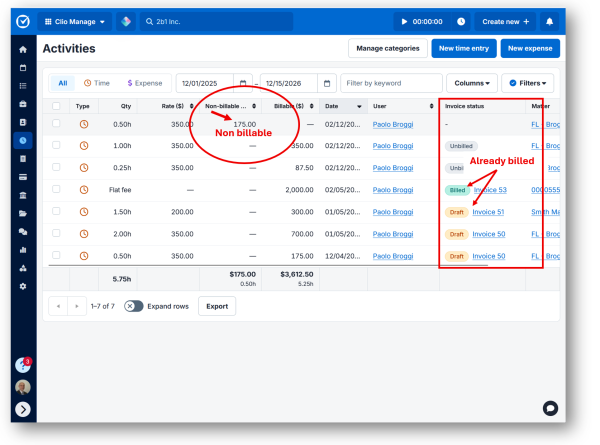
Clio Manage activities filters and bill draft line items
6) What do bill states mean, and why does “Approved” change everything?
Answer: Bill states are the lifecycle stages (Draft → Pending → Approved → Sent → Paid, depending on your workflow). Once a bill is Approved, edits can become limited.
Rule of thumb: If you need to add/remove activities, do it while the bill is still Draft whenever possible.
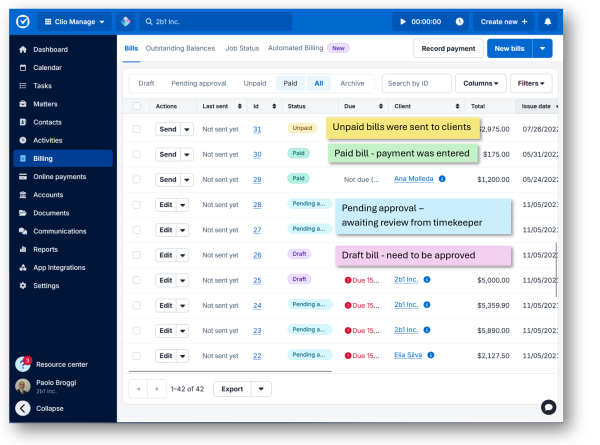
Clio Manage bill states draft pending approval approved
7) Edit vs void vs delete: what’s the difference?
Answer:
- Edit = fix the invoice content (ideally while Draft).
- Void = preserve a record but mark it invalid.
- Delete = remove it (best reserved for drafts and mistakes).
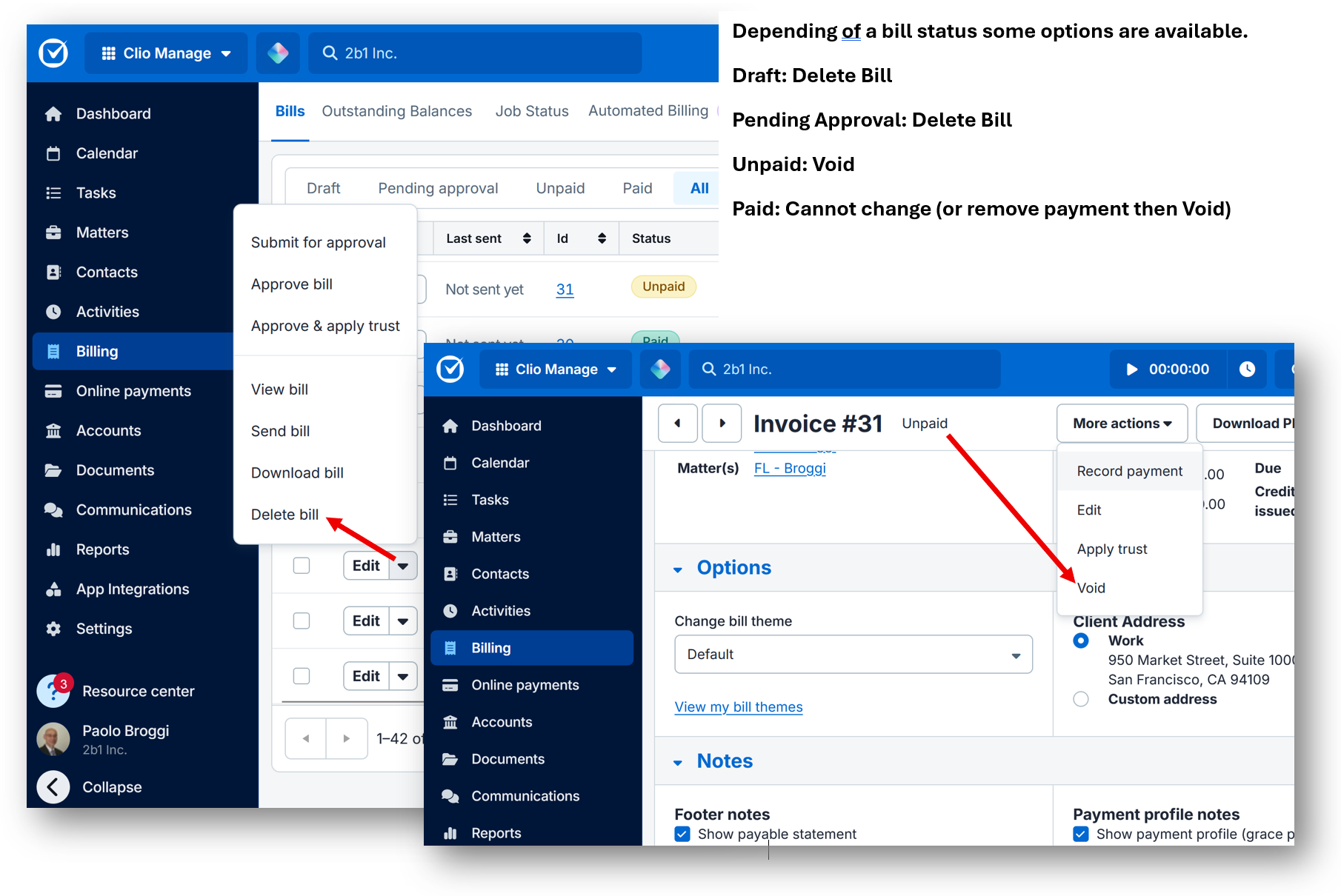
Clio Manage void bill versus delete bill options
Suggested alt text: “”
8) How do I make invoices look professional? (Bill themes)
Answer: Use Bill Themes as your invoice templates. This is where you add your logo, set layouts, and control what shows up on PDFs.
Client-trust tip: Consistency sells competence. A clean theme is the billing equivalent of showing up to court in real shoes.
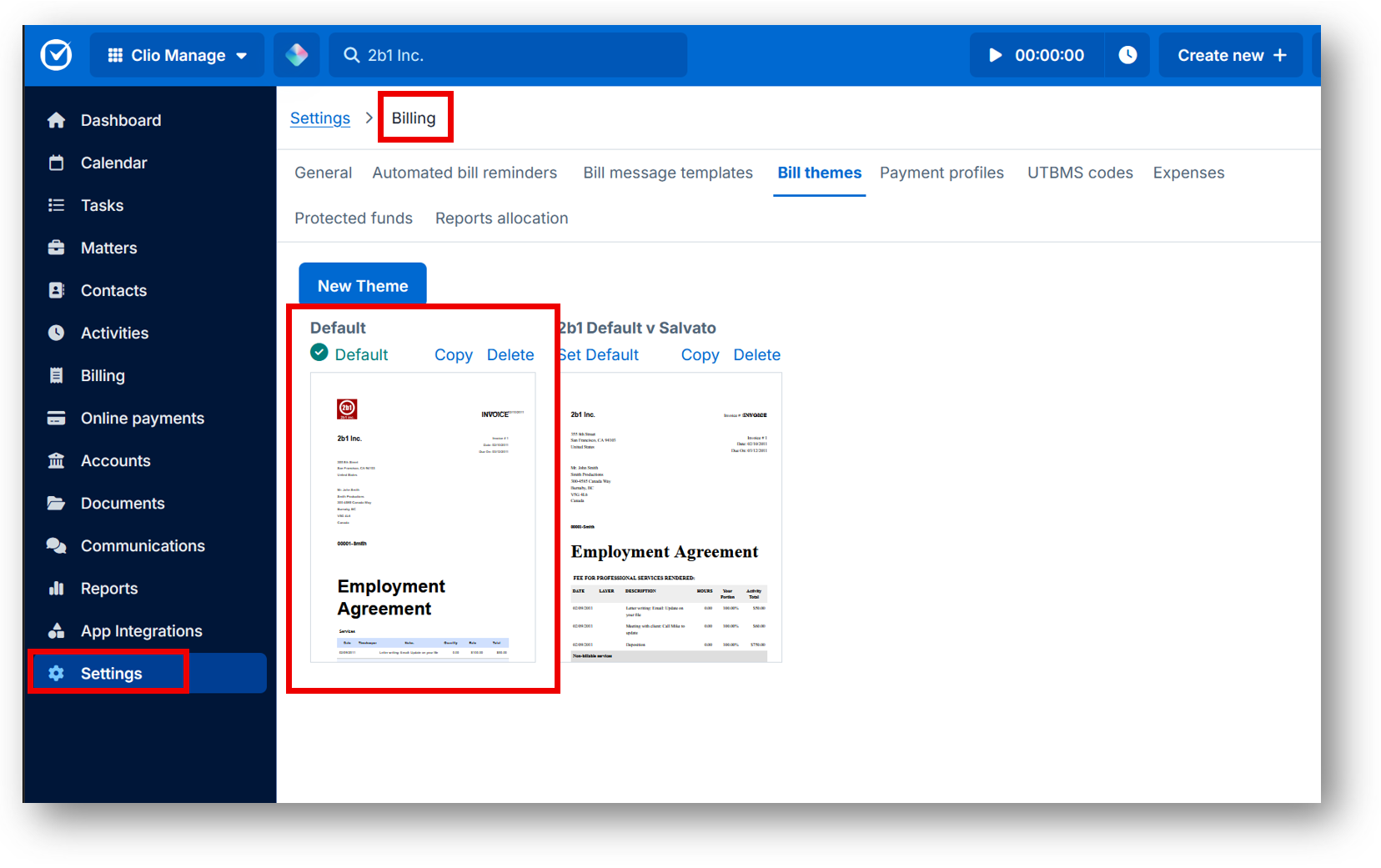
Settings >> Billing >>Bill Themes
9) Which Bill Settings should I configure once and never think about again?
Answer: Set defaults like PDF page size and your preferred sending method (secure link vs attachment). Get this right once, and your future billing runs will hurt less.
Bill Settings page showing PDF size and sending defaults (redact firm info).
10) How do I send/resend bills and track delivery (email, text, portal)?
Answer: You can send bills via email, text (if enabled), or through the client portal. Delivery activity is logged, so you can verify what was sent and when.
11) What are Bill Message Templates and why do they matter?
Answer: They save time and keep your messaging consistent. You build a template once, use it forever, and avoid writing “Please find attached…” until your keyboard files a grievance.
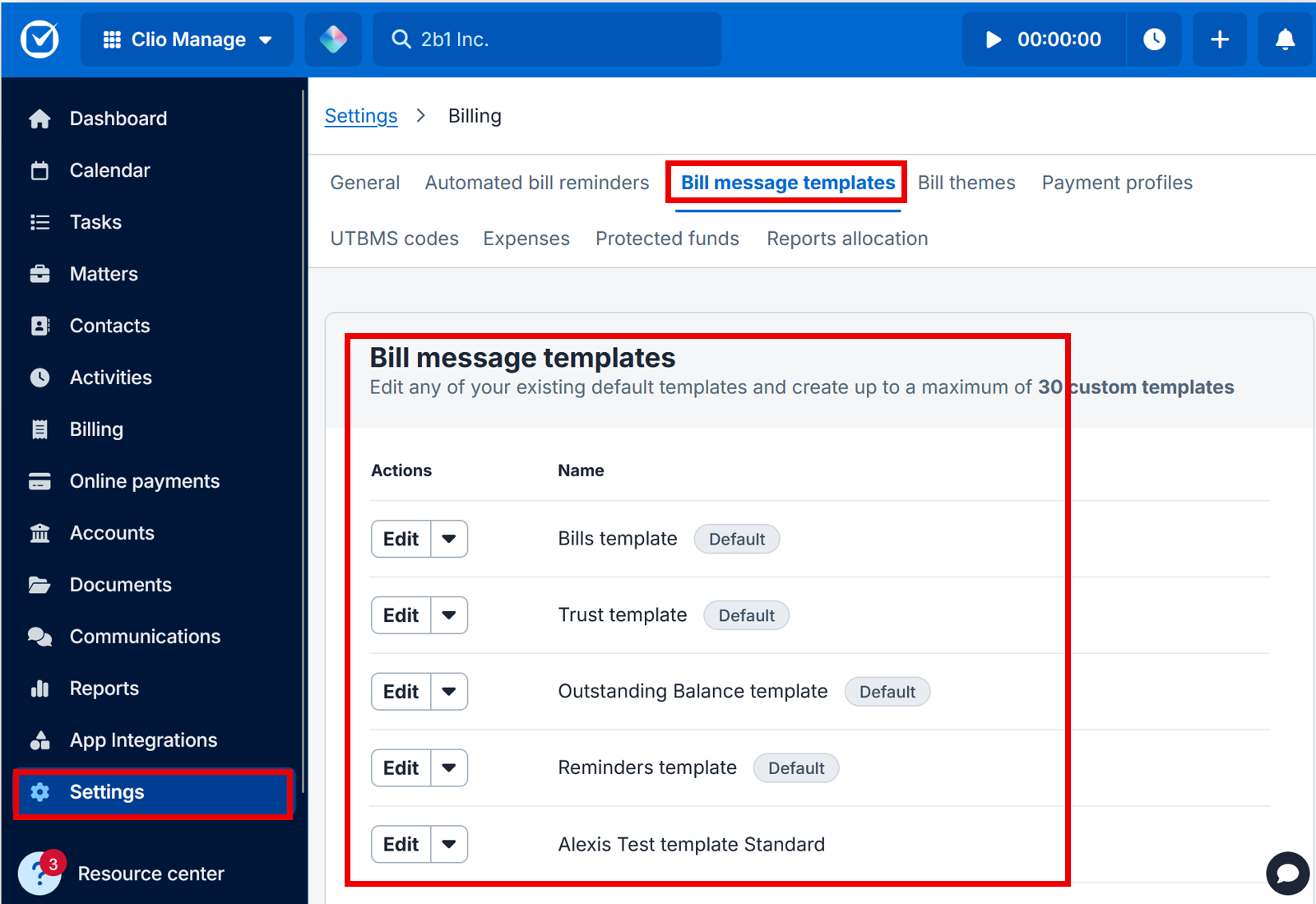
Clio Manage bill message templates autofill fields preview
Settings >> Billing >> Billing Templates
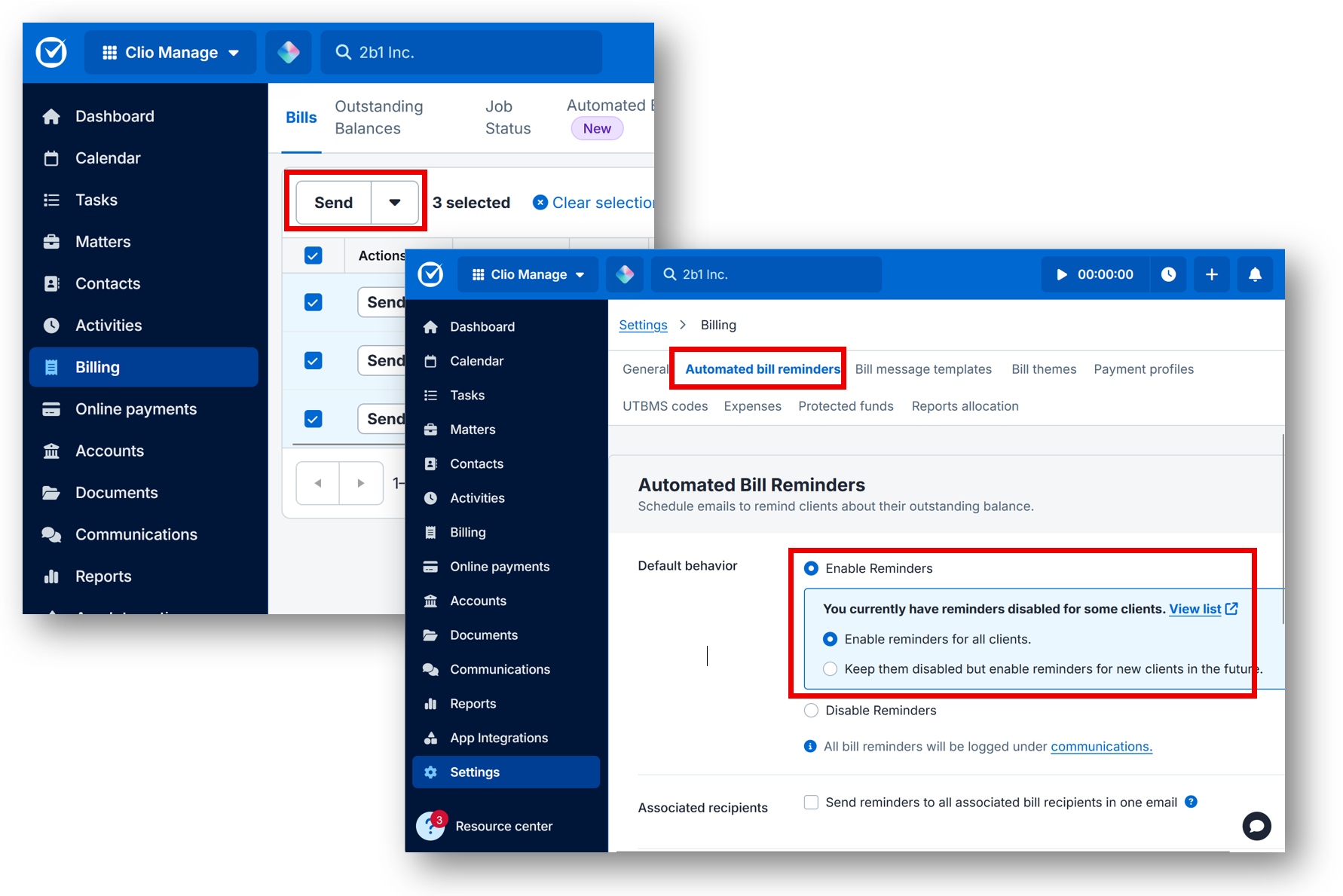
12) Bill reminders: manual, automated, and why reminders are secure links
Answer: You can send reminders manually and configure automated reminders. Many firms are surprised that reminders may send as a secure link rather than a PDF attachment.
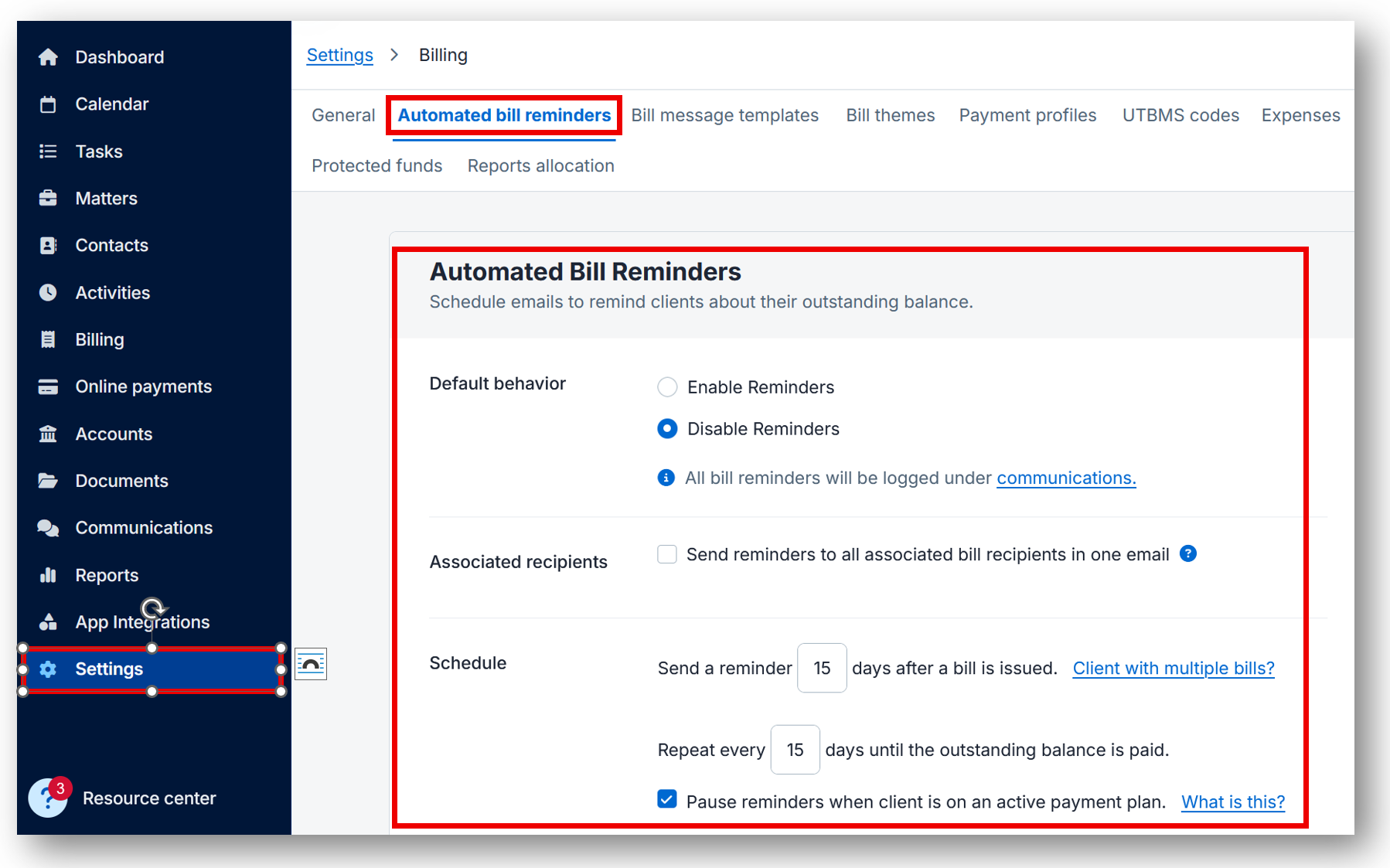
Clio Manage bill reminders outstanding balances automated schedule
Settings >> Billing >> Automated bill reminders
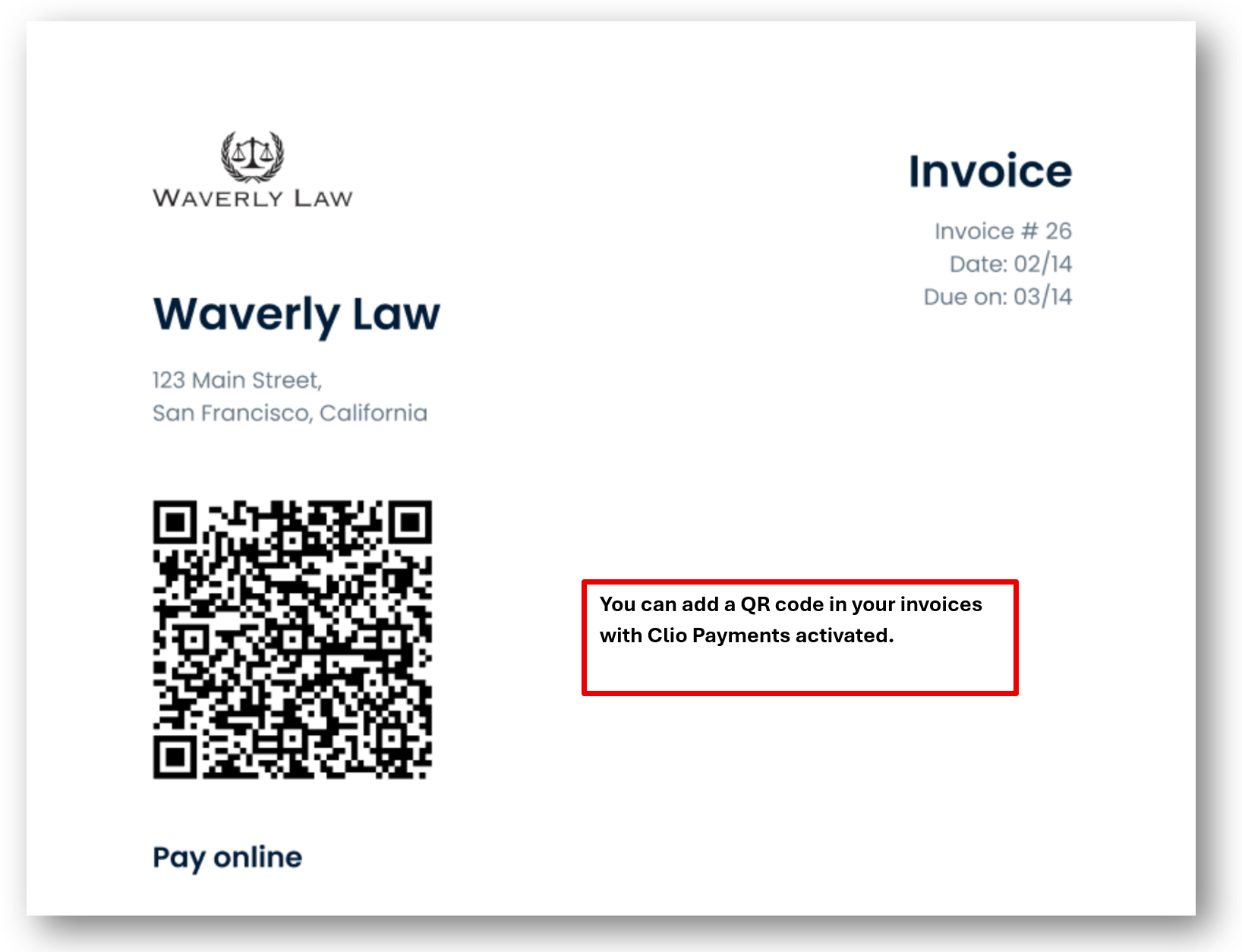
13) How do clients pay online (payment links, QR codes, Text to Pay)?
Answer: With Clio Payments enabled, you can use secure payment links and QR codes on bills. If text messaging is enabled, you can also text secure payment links.
14) How do I record payments correctly (including multi-bill and trust)?
Answer: Record payments through Clio Payments or manually. The key is consistency: decide what system is the source of truth and stick to it to avoid reconciliation headaches.
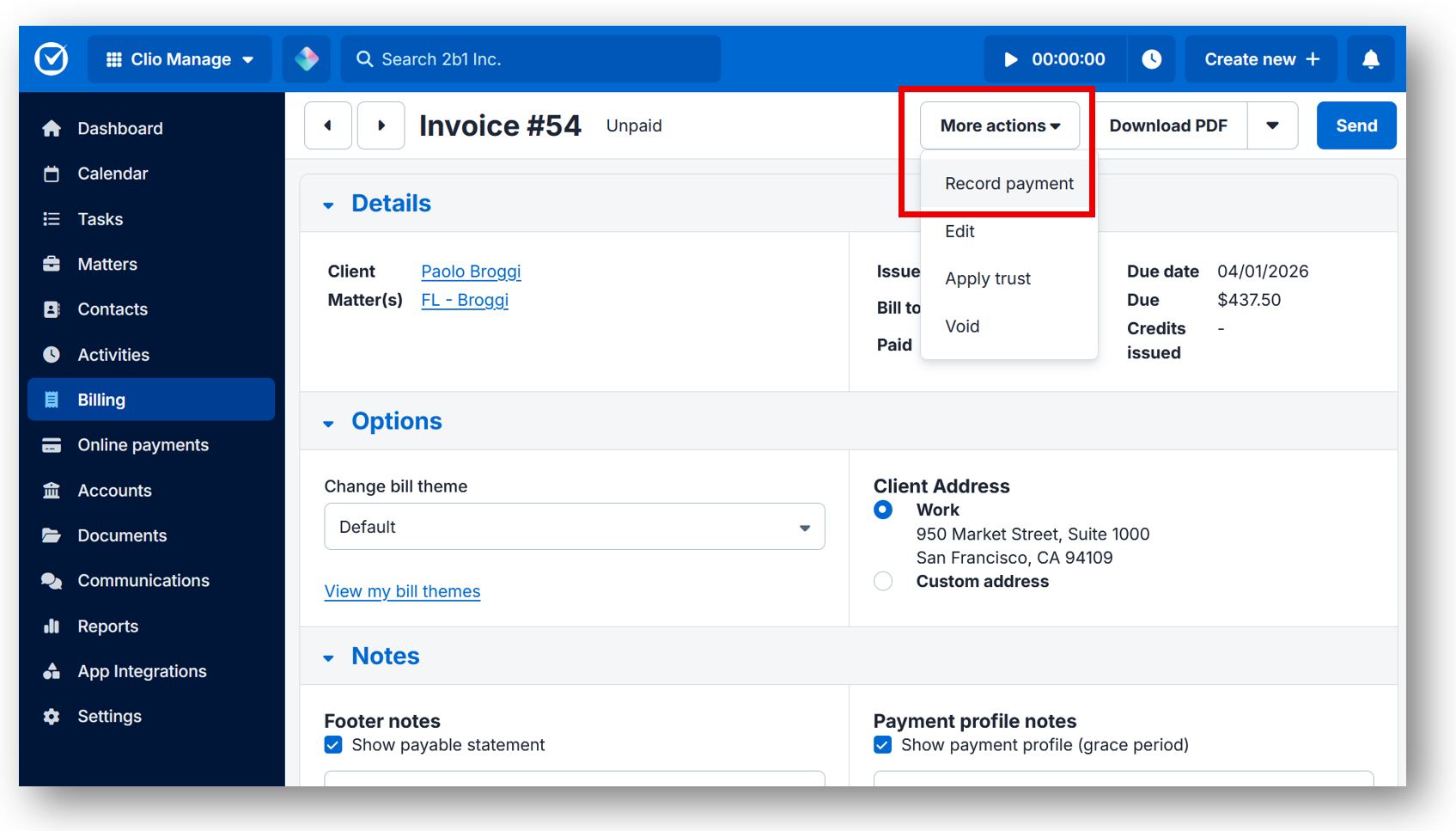
Open invoice, click on the invoice number >> More action>> Record Payment
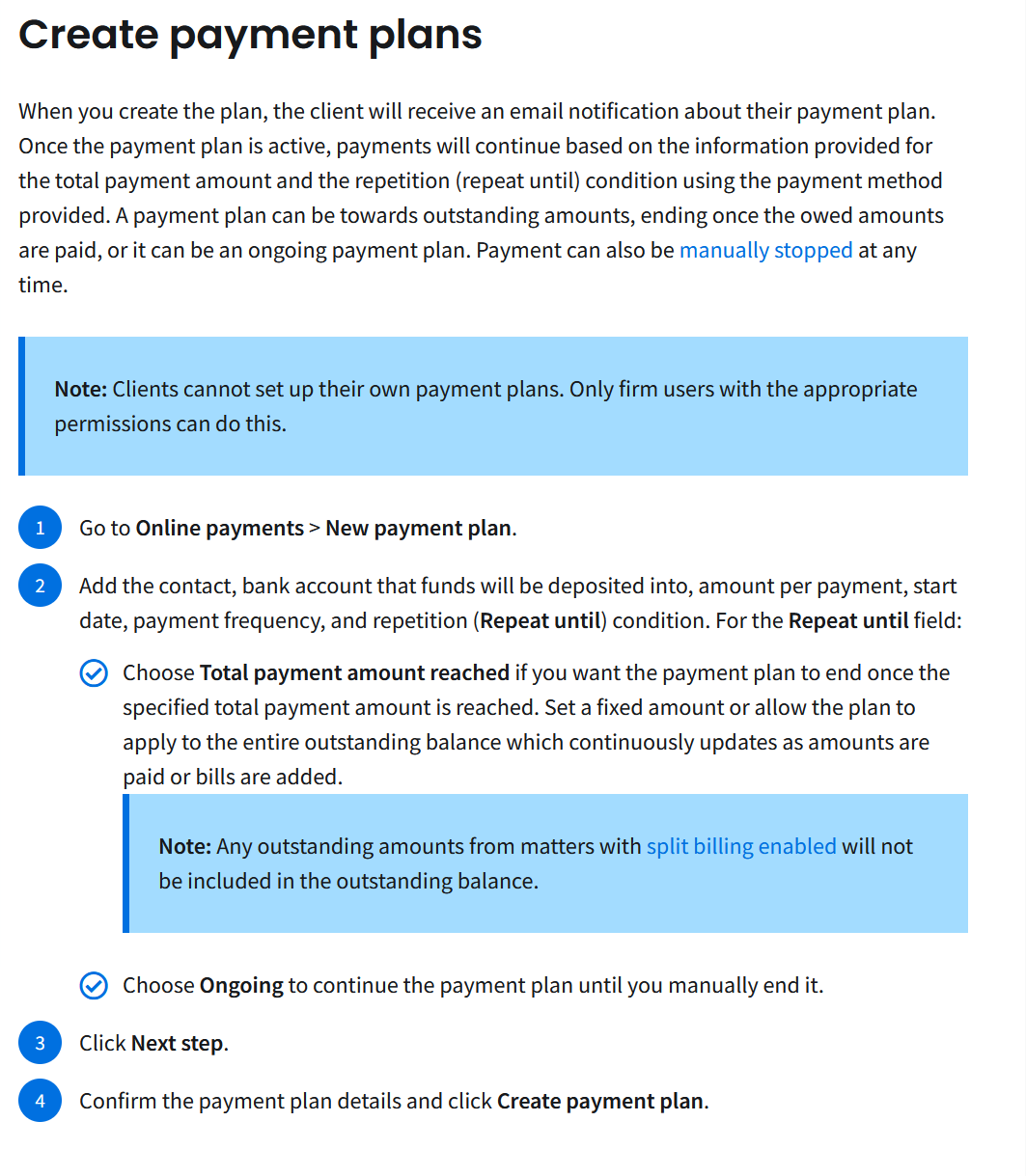
15) Payment plans: how do they work and what do they pause?
Answer: Payment plans collect recurring payments toward a balance. One common gotcha: automated bill reminders can pause for clients on active payment plans.
16) Can I split a bill between multiple payers?
Answer: Yes. Split billing lets multiple payers each receive a bill for their share (depending on your setup/availability).
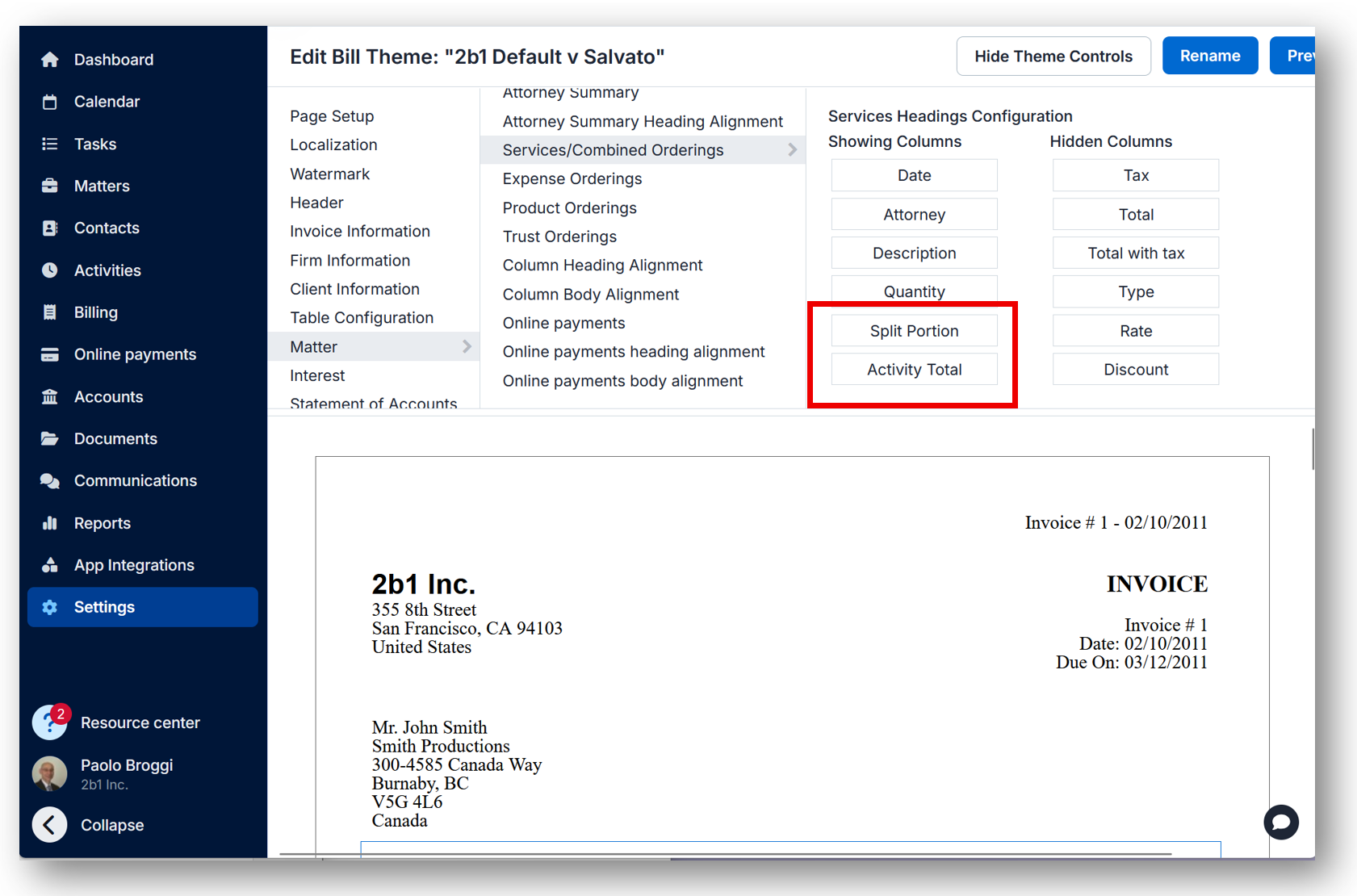
Settings >> Billing > Theme. Then open/create a theme go to Matter >> Services/Combined Ordering >> move Split Portion and Activity Total on the left column
17) Trust/client funds basics: what you can do and what you cannot do
Answer: Trust funds are tracked separately from operating money. Clio supports trust workflows, but jurisdiction rules still control what’s permitted.
- Keep trust and operating workflows distinct.
- Train staff on trust application and trust requests.
- Standardize how you document trust transfers and bill application.
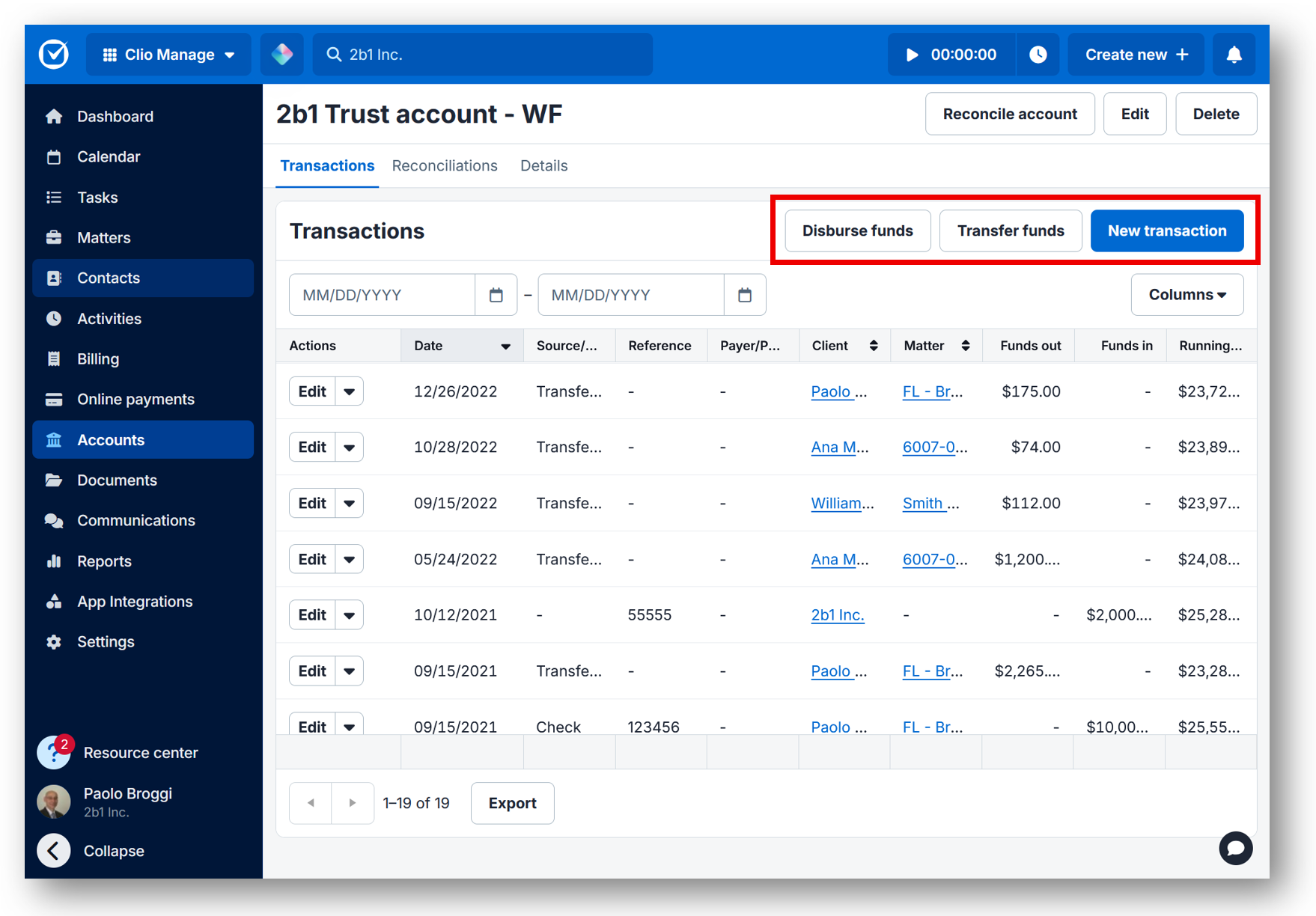
Accounts >> Trust account
18) Evergreen retainers: how to set up replenishment workflows
Answer: Evergreen is: hold funds in trust, get notified when it drops below a threshold, bill work, apply trust, and request replenishment. The goal is fewer awkward “friendly reminder” emails.
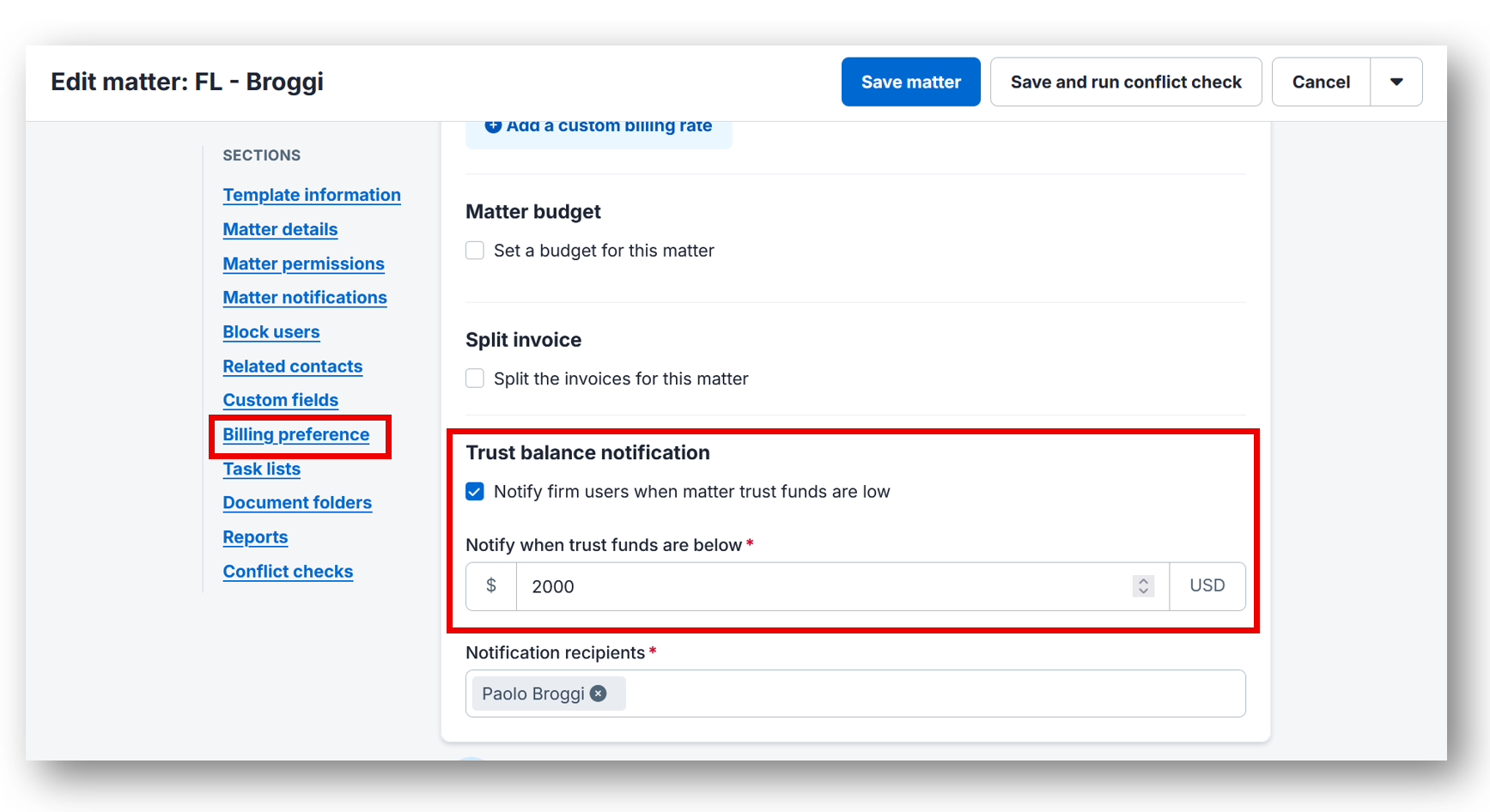
19) Trust reconciliation: why it doesn’t match and who can reconcile
Answer: Reconciliation verifies your trust ledger matches the bank statement and creates an audit-friendly history. If things don’t match, it’s usually timing differences, missing entries, or split workflows across systems.
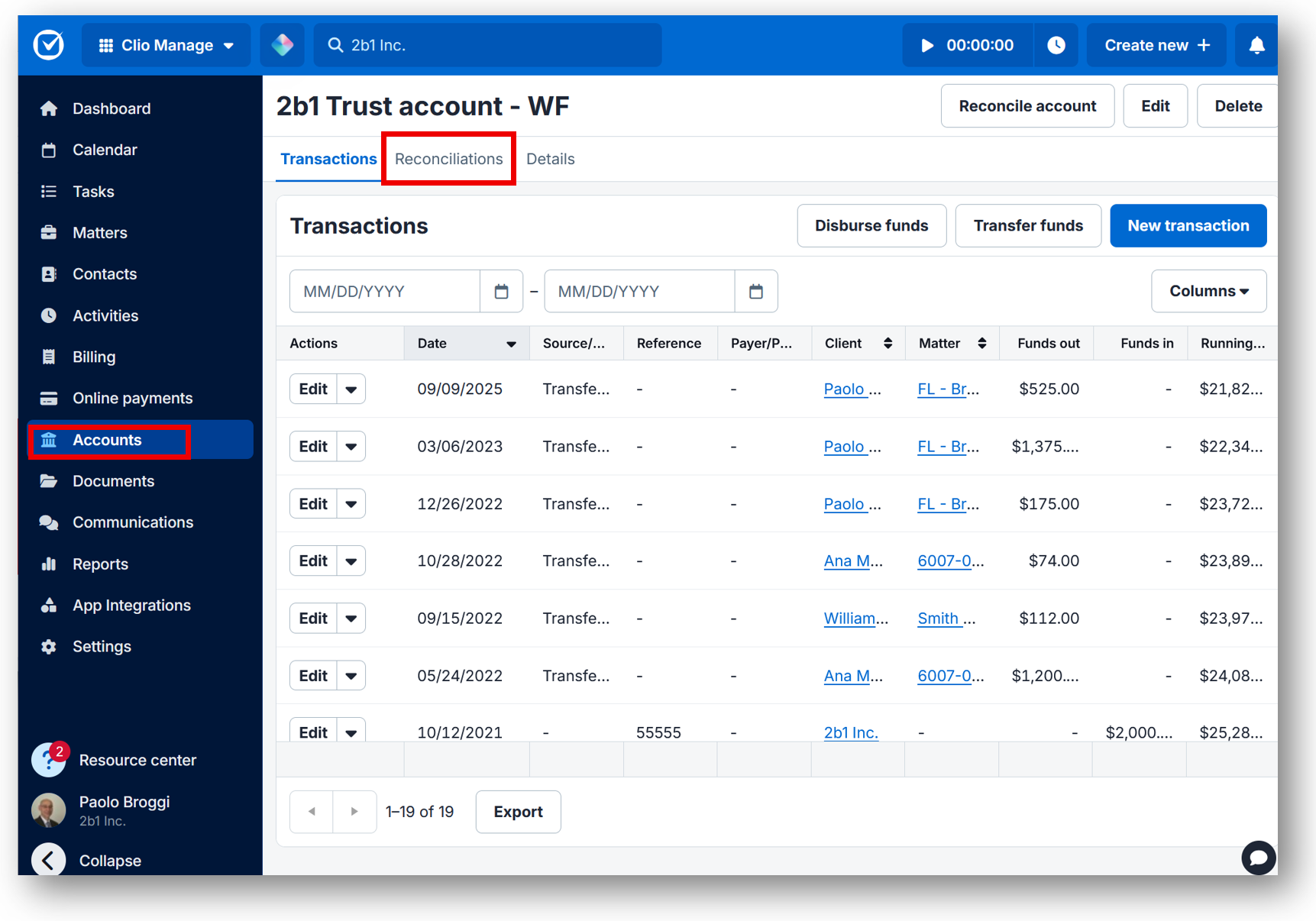
Accounts >> Reconciliation
20) Discounts, credit notes, interest, tax, reports, exports, and LEDES
A) Discounts vs credit notes (write-offs)
- Discounts: reduce amounts on the bill/line items (best applied while Draft).
- Credit notes: reduce the amount owed on an approved, unpaid bill (common for write-offs).
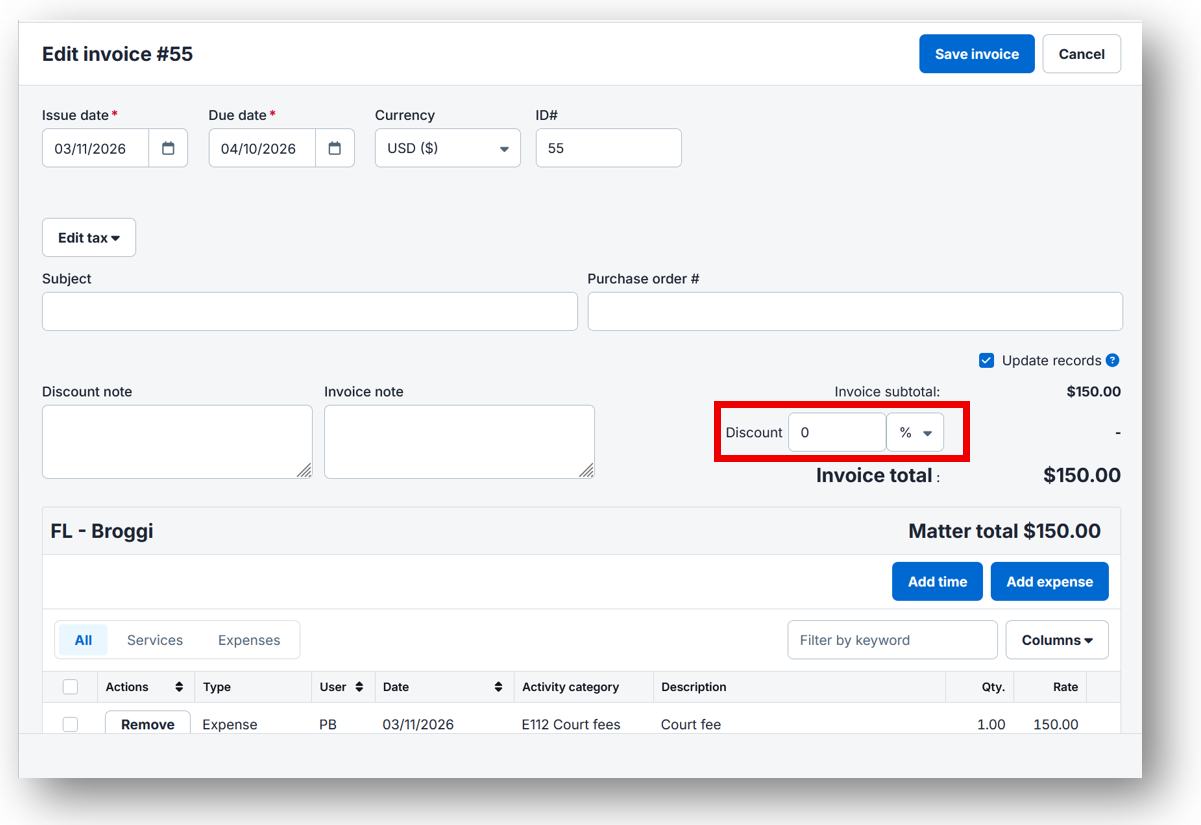
Open Bill edit screen showing discount.
B) Interest and payment profiles
Answer: Interest rules live in payment profiles. Make sure your policy is documented and client-facing terms are aligned with your engagement agreement.
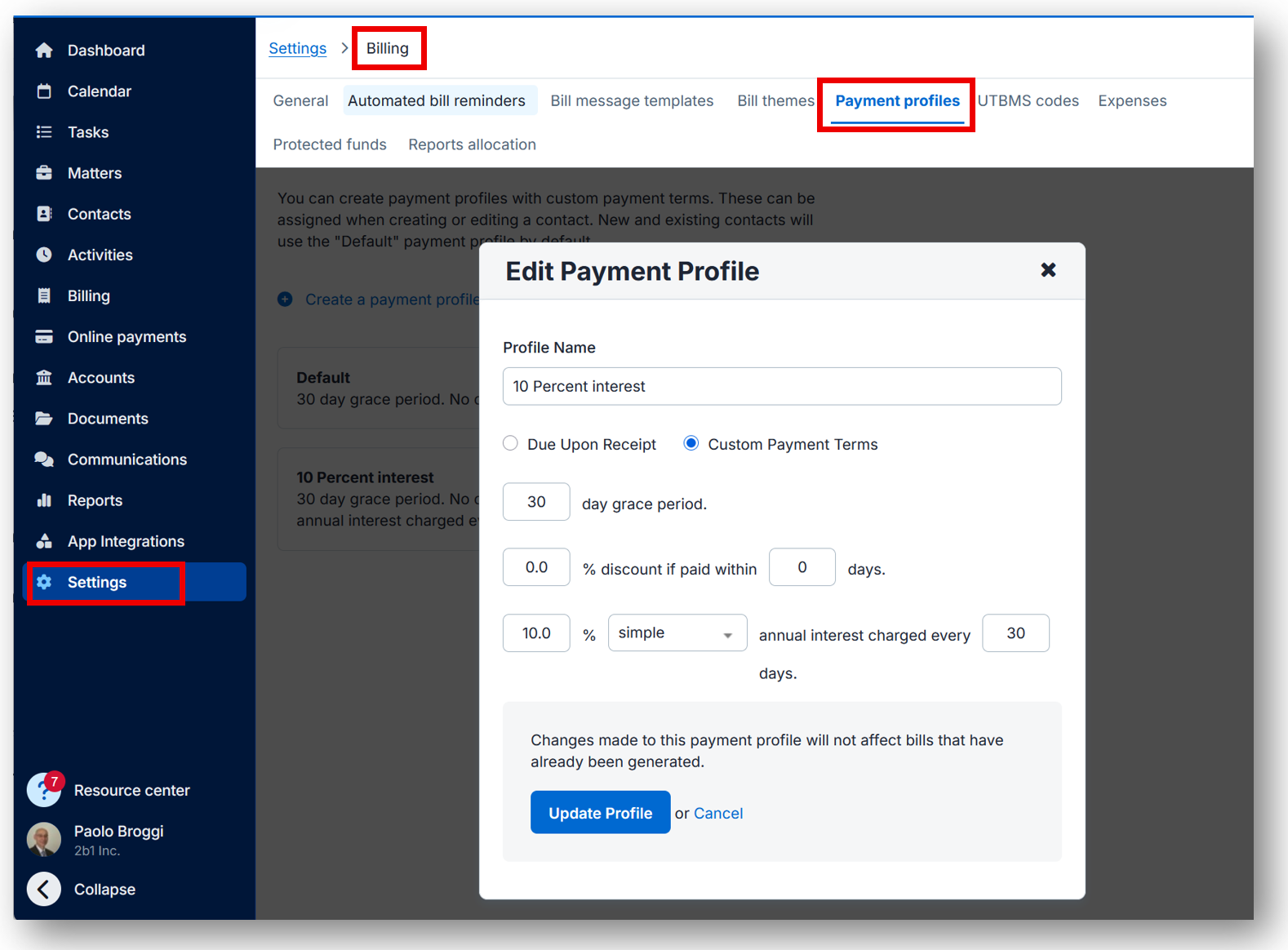
Payment profile settings showing interest/grace period
Settings >> Billing >> Payment profiles
C) Tax
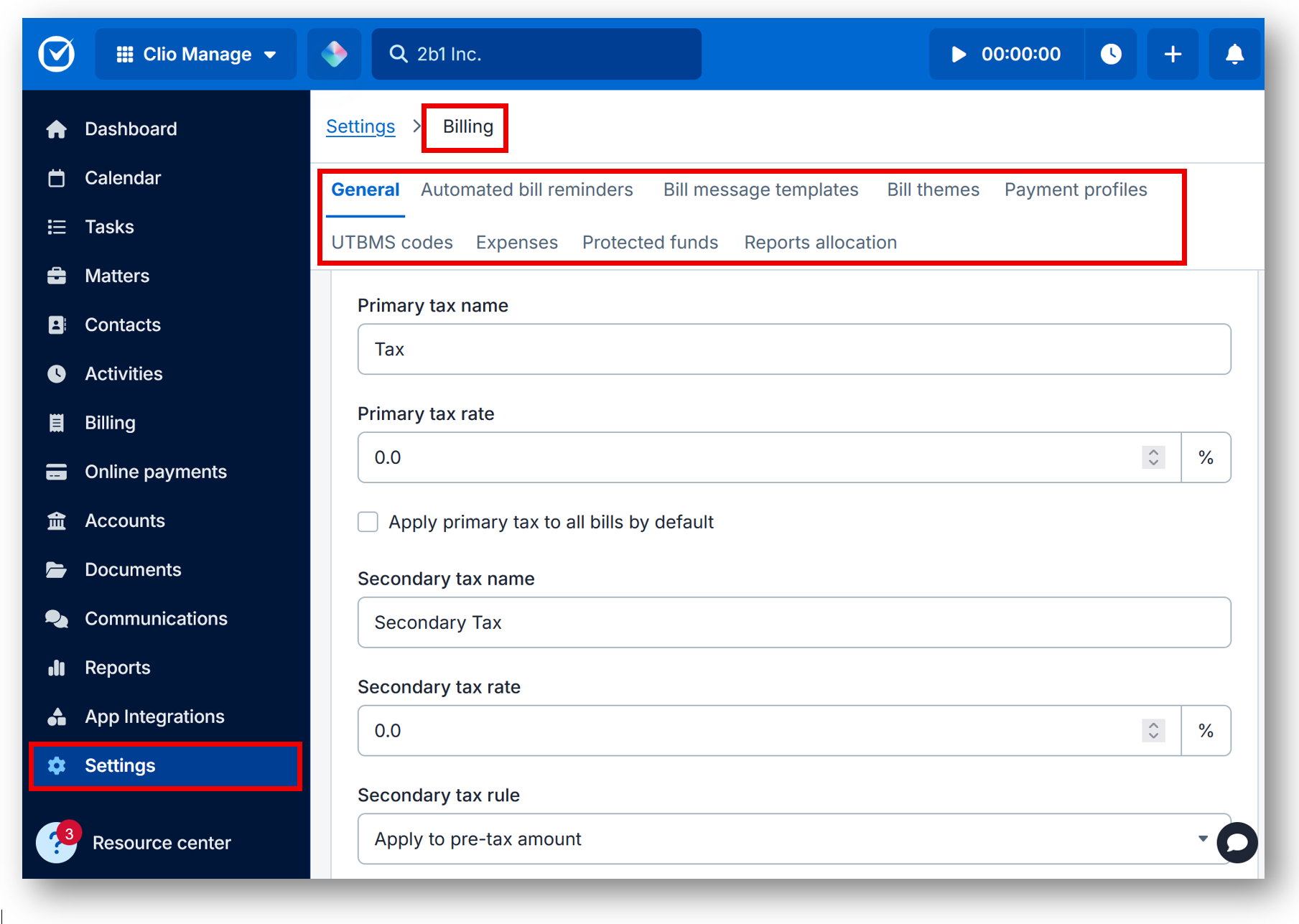
Answer: Configure tax carefully (and consistently). If your firm uses multiple taxes, confirm how line items are taxed and how that appears on invoices.
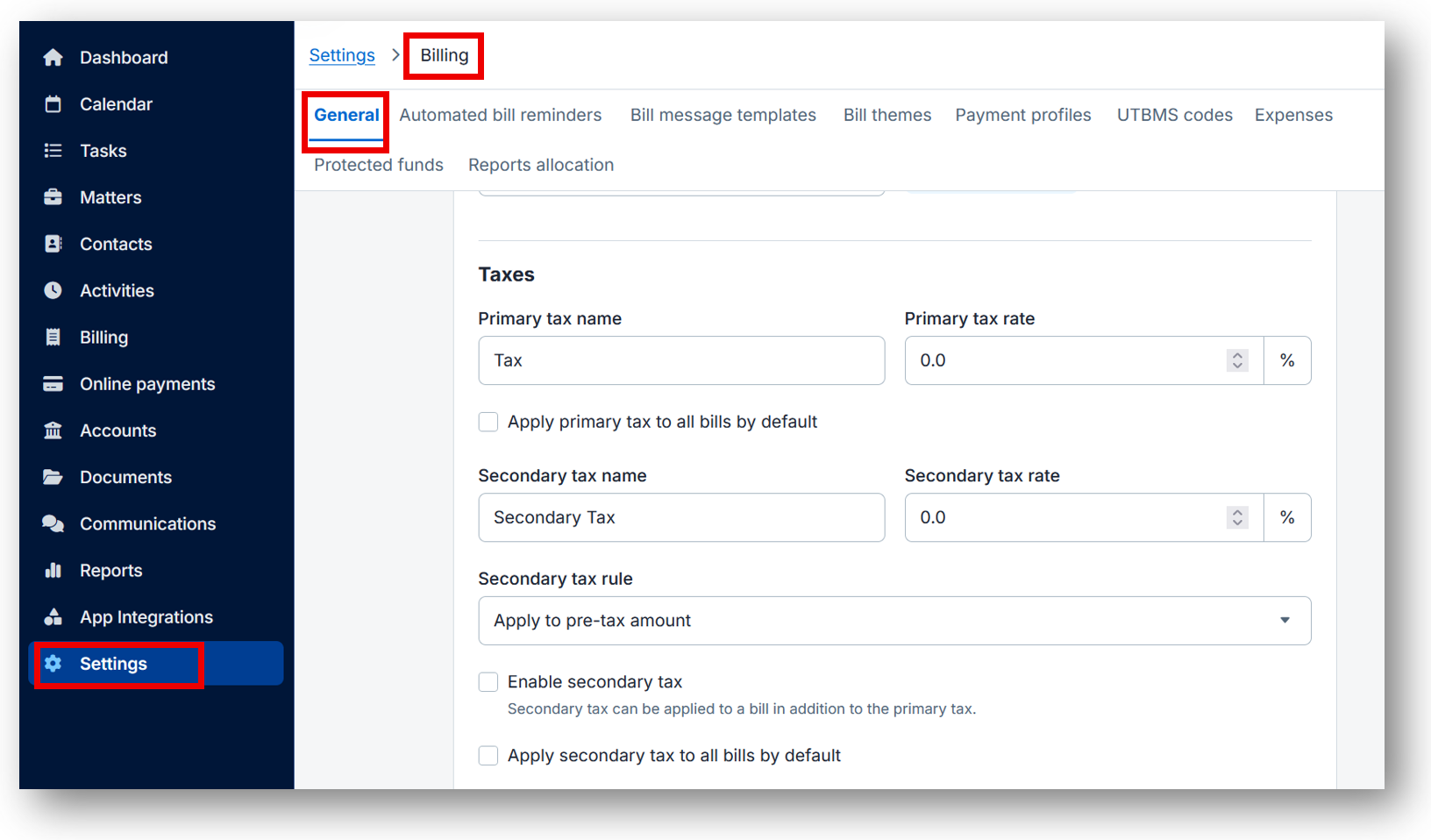
Tax settings in Settings >> Billing >> General
D) Reports and exports (client-shareable)
Answer: For client-friendly summaries, export statements and billing reports. This is the “here’s the clean record” button you’ll use when a client asks for clarity.
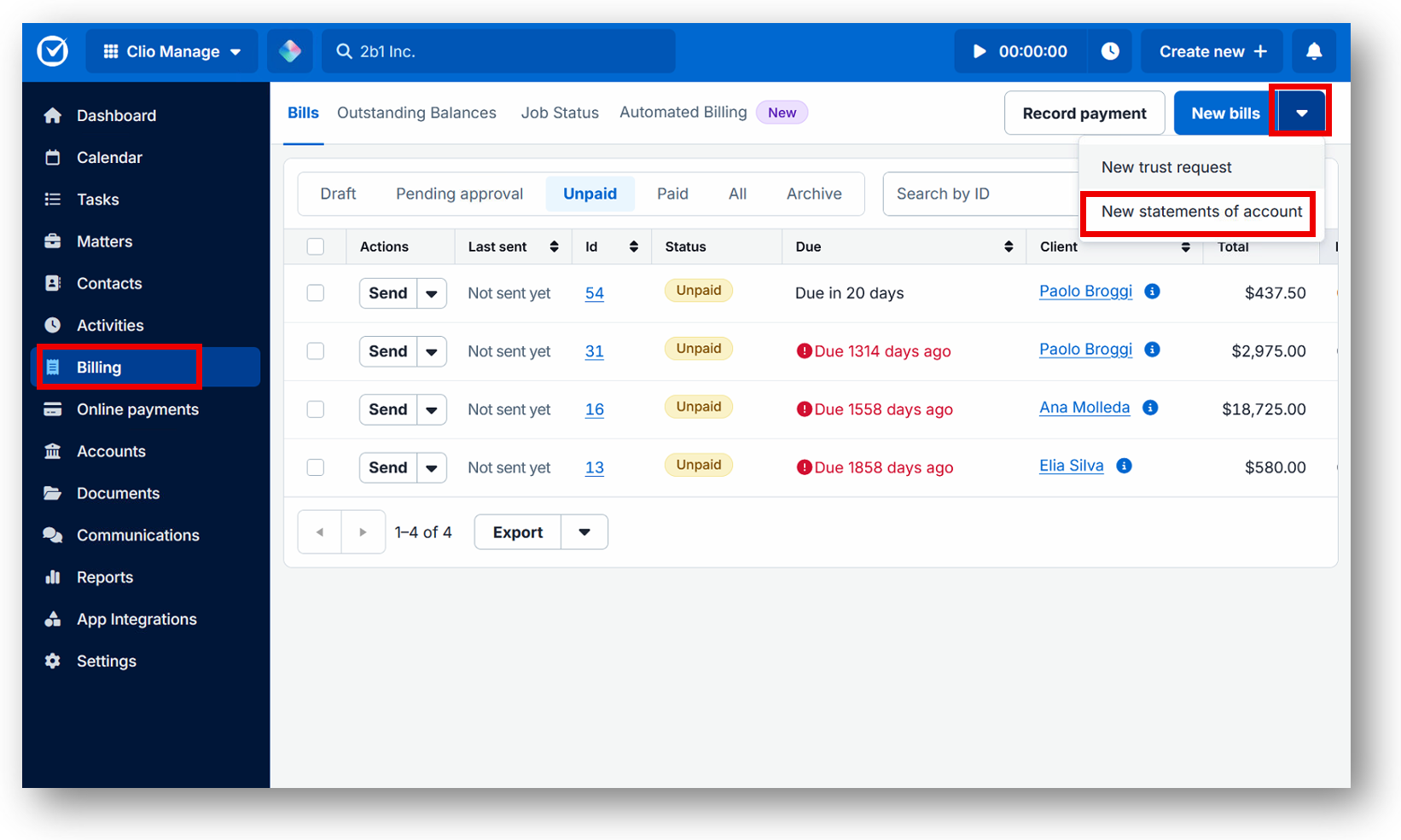
Statements of account Billing >> New Bills arrow down >> New Statement of account
E) LEDES and UTBMS (if you bill corporate/insurance clients)
Answer: If you need LEDES output, enable UTBMS codes and confirm timekeeper and firm ID settings so the export passes review.
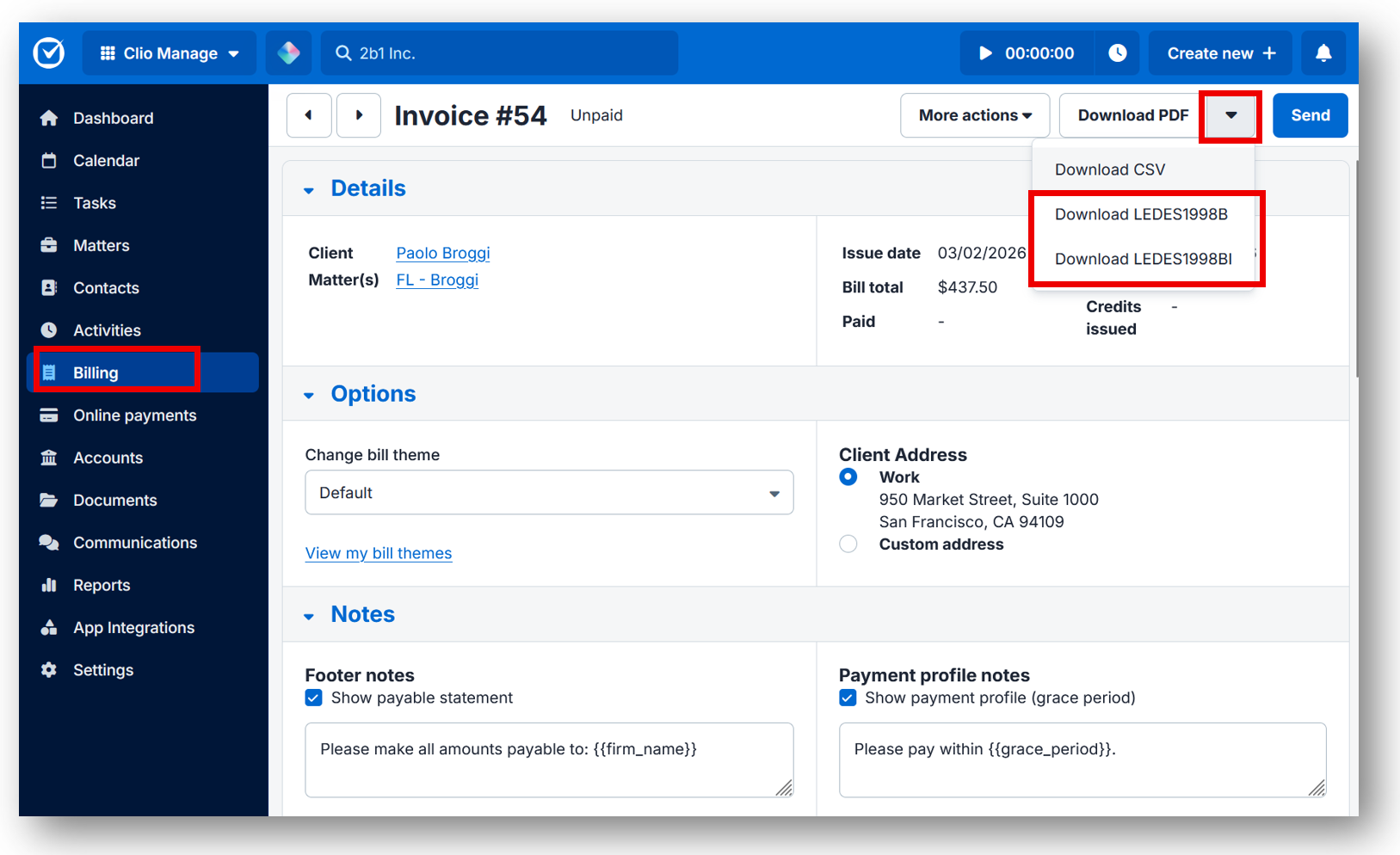
Billing >> Open Bill number >> Click on the Download – You will need to setup LEDE setting in the additional pleases.
Still Have Questions?
Call us at 415-284-2221 or fill out the form below to have some one to help out.