
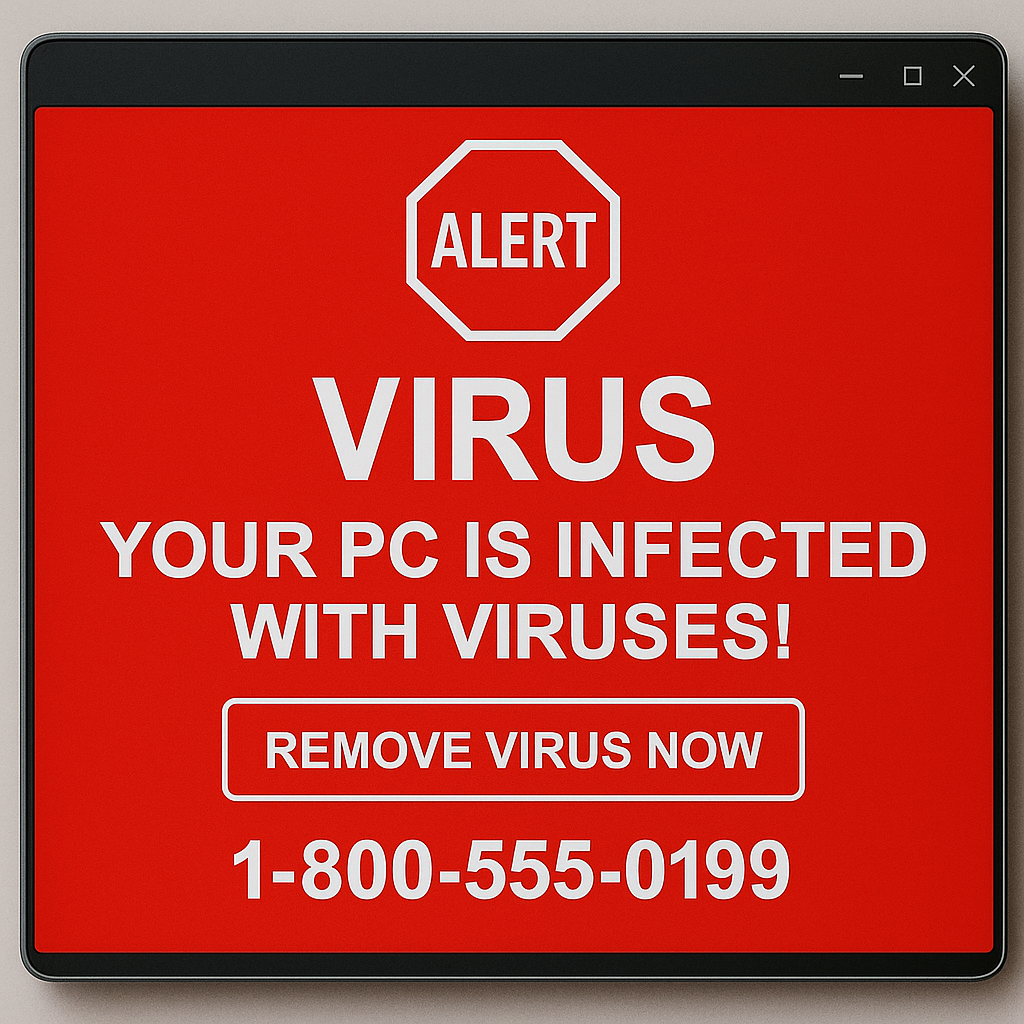
The 90‑Second Story
-
Client visits a website. The screen turns into Las Vegas. Red flashing warnings announce “Your PC is infected” and a phone number appears.
-
She calls 2b1 Inc., NOT the number on the page.
-
Following instructions, she holds the power button to shut down and then restarts.
-
After restart, “alerts” that look like Microsoft, Malwarebytes, and McAfee appear with buttons to “clean” the device.
-
2b1 Inc. runs a full scan. Zero malware.
-
We open Windows notification settings and find two new “senders” added at the exact time of the scare. We block them.
-
We clear browser cookies and cache, run Windows and Dell updates, and update all browsers (Edge, Chrome, Firefox). Peace restored.
Key point: this was not a virus. It was a website pretending to be an alarm, plus push notifications that were allowed during the panic. Think fake fire alarm pulling you toward the gift shop.
What Is Scareware, Exactly?
Scareware is a web page or pop‑up designed to panic you into clicking, calling, or paying. It impersonates big names like Microsoft or your antivirus. It often uses full‑screen pages that are hard to close and loops of pop‑ups that reload if you try to leave.
In legal terms, think of it like a fake court officer shouting “Contempt!” in the hallway. Looks official. Not official. The only thing it enforces is your fear.
Where Did It Come From?
Scareware usually arrives through one of three doors:
-
Malvertising: a bad ad slips into a legitimate site’s ad network and redirects you to the scary page.
-
Typosquatting: you mistype a popular site and land on an imposter page.
-
A hacked legitimate site: a real site gets compromised and briefly serves junk.
Any of these can trigger the same circus of fake alerts.
Why Antivirus Found Nothing
Because there was nothing installed. The “infection” lived in the browser tab and in web push notifications you never meant to allow. Antivirus looks for malicious software on your device. Scareware tries to scare you into installing the malware yourself or handing control to a scammer on the phone.
Real vs. Fake Alerts: A 10‑Second Test
-
Phone number present? Fake. Real vendors do not put a phone number in a virus alert.
-
Inside a web page or attached to the browser window? Likely fake. Real alerts open in the security app or Windows Security, not a random site.
-
All‑caps countdown clock with sirens? Fake. Real security software is direct and boring on purpose.
The Exact Fix We Used (and you can too)
Use these steps if you or a coworker gets the red‑screen treatment.
Step 1: Stop the show
-
Do not click any buttons on the scary page.
-
Try closing the tab or the browser. If it fights you, use Task Manager. Press Ctrl+Shift+Esc, select Chrome, Edge, or Firefox, then End task.
-
If the system is unresponsive, a forced shutdown is fine. Hold the power button until the machine turns off, then wait, and power it back on.
Step 2: Do not restore the last session
When the browser asks about restoring tabs, pick “No.” You do not want to reopen the haunted house.
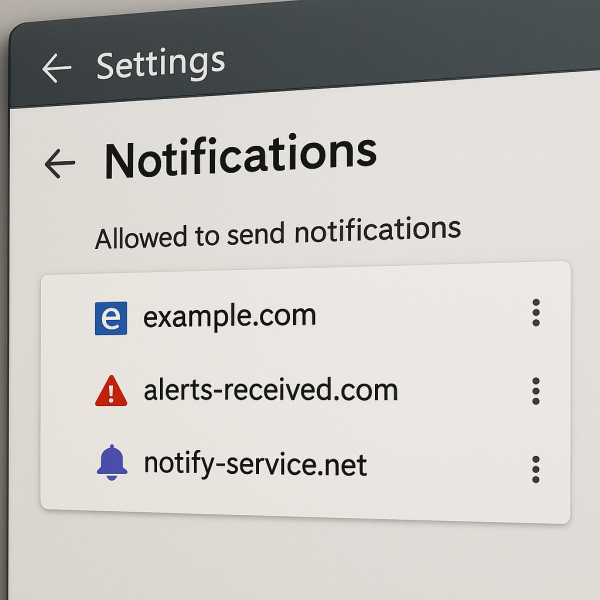 Step 3: Nuke the sneaky notifications
These “senders” are often websites you never meant to approve.
-
Windows 10/11: Settings > System > Notifications. Look under “Notifications from apps and other senders.” Turn off anything you do not recognize or that appeared at the time of the incident.
-
Chrome: Menu > Settings > Privacy and security > Site settings > Notifications. Remove anything unfamiliar from “Allowed.”
-
Edge: Settings > Cookies and site permissions > Notifications. Remove unknown sites.
-
Firefox: Settings > Privacy & Security > Permissions > Notifications > Settings. Remove unknown sites.
Tip: if you never want site notifications, set the browser to “Don’t allow” by default.
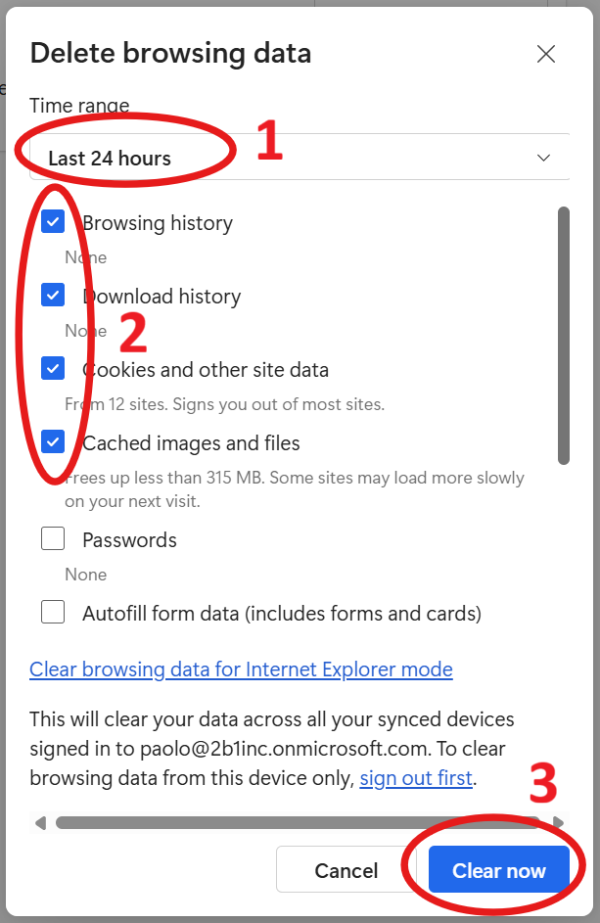 Step 4: Clear browser gunk
-
Chrome/Edge: Ctrl+Shift+Del. Choose “All time,” select Cookies and Cached images and files. Clear. Uncheck passwords and auto fill to retain your saved password and auto fill text.
-
Firefox: Settings > Privacy & Security > Cookies and Site Data > Clear Data.
Note: this can sign you out of websites. Worth it.
Step 5: Scan anyway
Run a full scan with Windows Security and your preferred antivirus. If you use Malwarebytes, run a Threat Scan. A clean report is normal in scareware cases.
Step 6: Update everything
-
Windows Update and your device’s support app (Dell, Lenovo, HP).
-
Update Chrome, Edge, and Firefox.
-
Restart once updates complete.
Step 7: Quick hygiene check
-
Extensions: remove anything you did not install on purpose.
-
Programs: Control Panel > Programs and Features. Sort by install date and remove junk you do not recognize.
-
Passwords: if you typed credentials on any odd page, change those passwords and enable two‑factor authentication.
What We Did For Our Client
-
Blocked two new notification senders added at the exact time of the scare.
-
Cleared cookies and cache in the affected browser.
-
Ran a complete malware scan with 2b1 Care Advanced Security with EDR. Nothing found.
-
Updated Windows, Dell drivers, and all browsers.
-
Educated on the “don’t click, don’t call, call us” rule.
Result: no infection, no data loss, and a great story.
Prevention That Actually Works
-
Turn off site notifications by default. Enable them only for sites you trust.
-
Keep Windows and browsers updated.
-
Use only one reputable antivirus, and let it update automatically.
-
Bookmark your important sites and use the bookmarks. This avoids typosquatting.
-
Consider “Enhanced protection” in Chrome or “Microsoft Defender SmartScreen” in Edge.
-
When in doubt, take a beat. Scammers want you to panic. Calm beats click.
The “Fridge Magnet” Version
-
Don’t click. Don’t call numbers in pop‑ups.
-
Close the browser. If stuck, use Task Manager or power off.
-
Do not restore previous tabs.
-
Remove strange notification senders in Windows and your browser.
-
Clear cookies and cache.
-
Update Windows, your device support app, and all browsers.
-
Run a full antivirus scan.
-
If anything feels off, call 2b1 Inc.
Why This Matters
Scareware is a con with great lighting. It counts on fear, not code. Your best defense is process. Treat the pop‑up like a stranger who shows up in a judge’s robe in the lobby. Looks official, still a stranger. Verify, then act.
Share This
 Feel free to copy the Fridge Magnet list and send it to family, coworkers, and that one friend who always “just clicks the big button.” If you want a printable version branded for your team, we can make one.
If a blinking red screen ever tries to deputize you into tech support, remember the rule: do not engage, do not pay, and absolutely do not call the number that is yelling at you. Call someone who actually knows you. Call 2b1 Inc. 415-284-2221 or fill out the form below.